
The new filtering feature helps you focus on orders from a specific marketplace or integration store. Use it on the Shipping page to quickly display only the orders you want to process—especially helpful when you manage multiple stores or locations.
Step-by-step: Use the Marketplace Orders filter
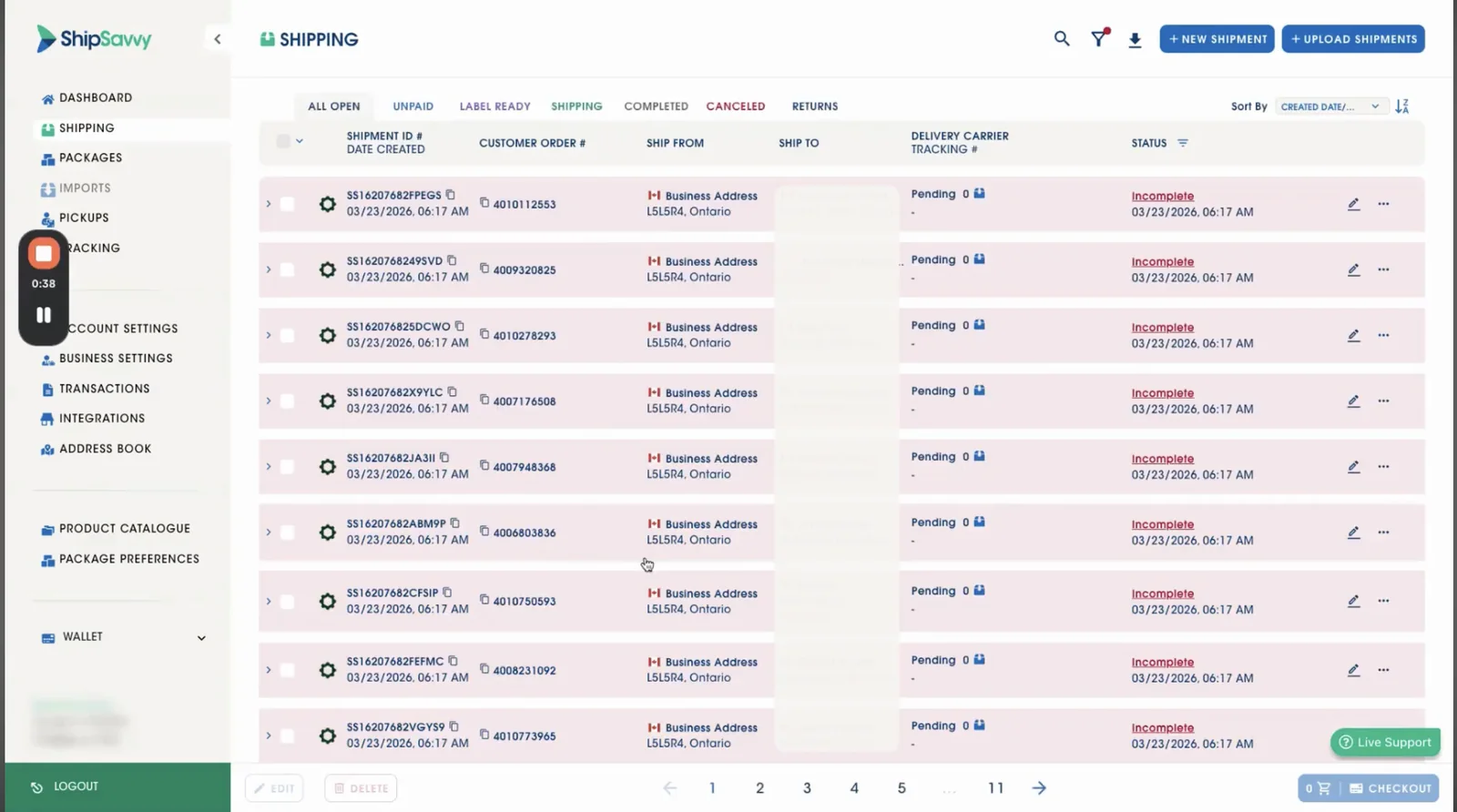
Open the Shipping page
- From the left-hand menu, click Shipping to view your orders list.
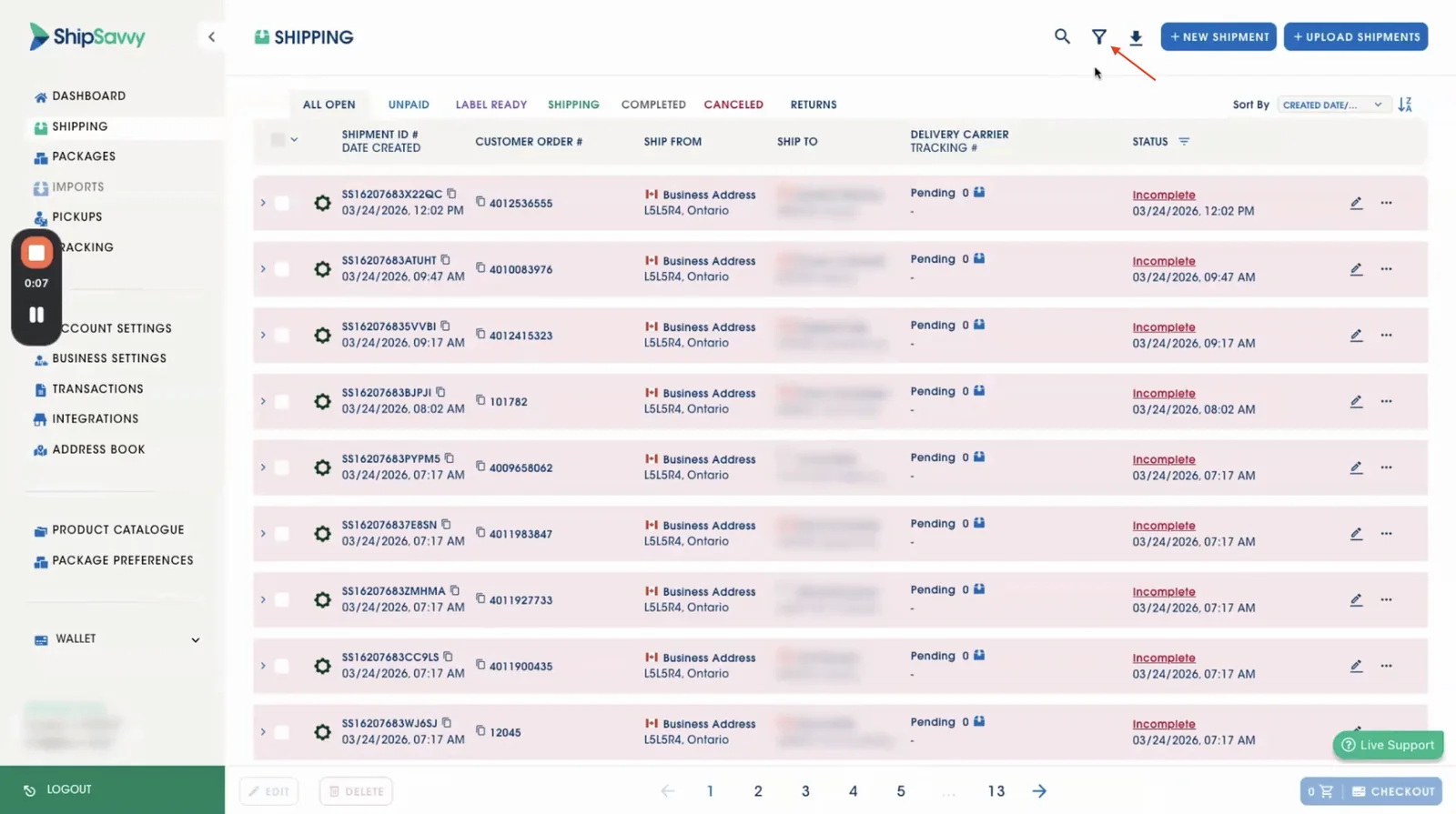
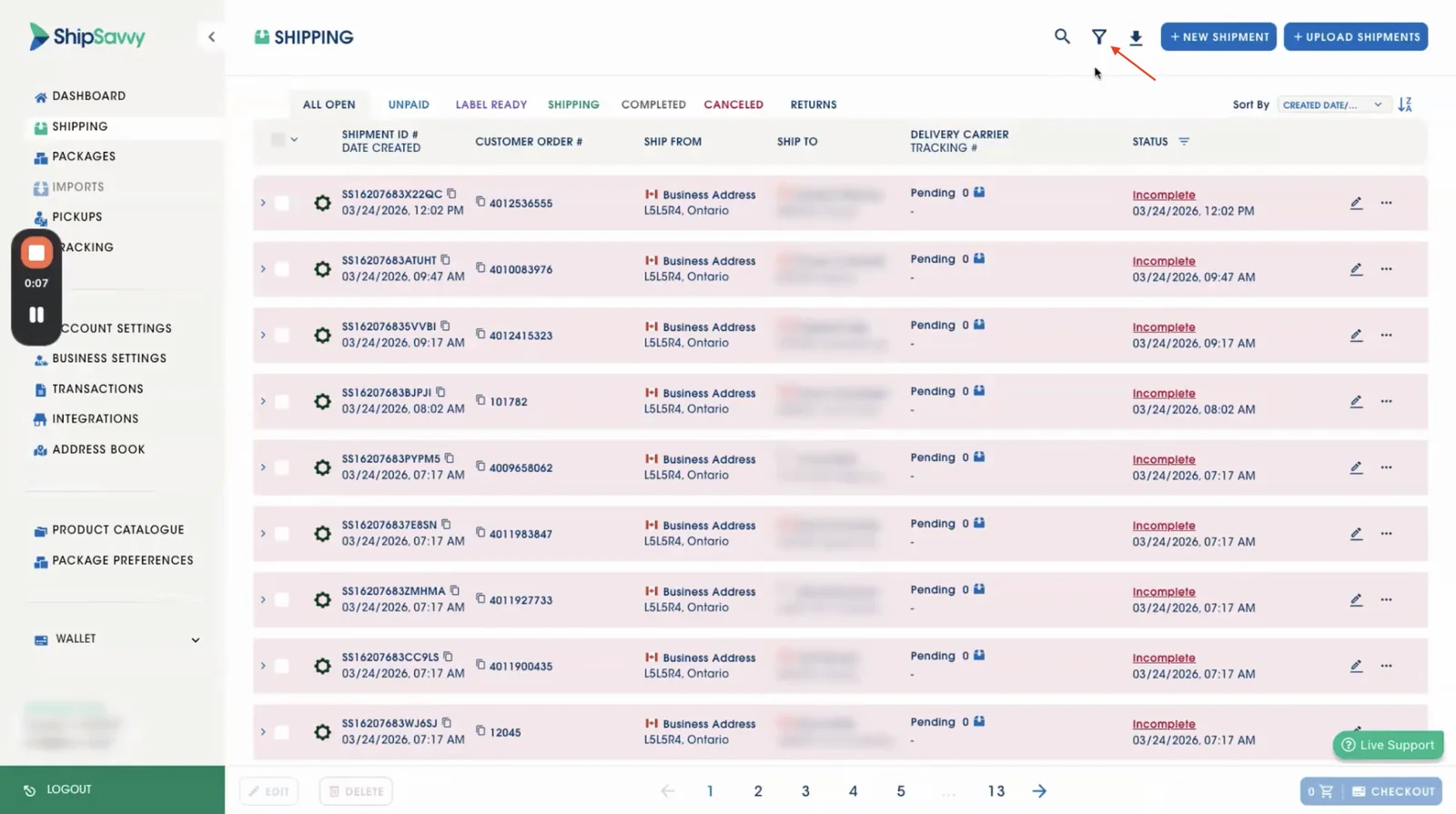
Find the filter at the top of the orders list
- At the top of the orders list, locate the Filter option.
Select the Integration Store
- Click the Integration Store drop-down menu.
- Choose the store you want to filter by.
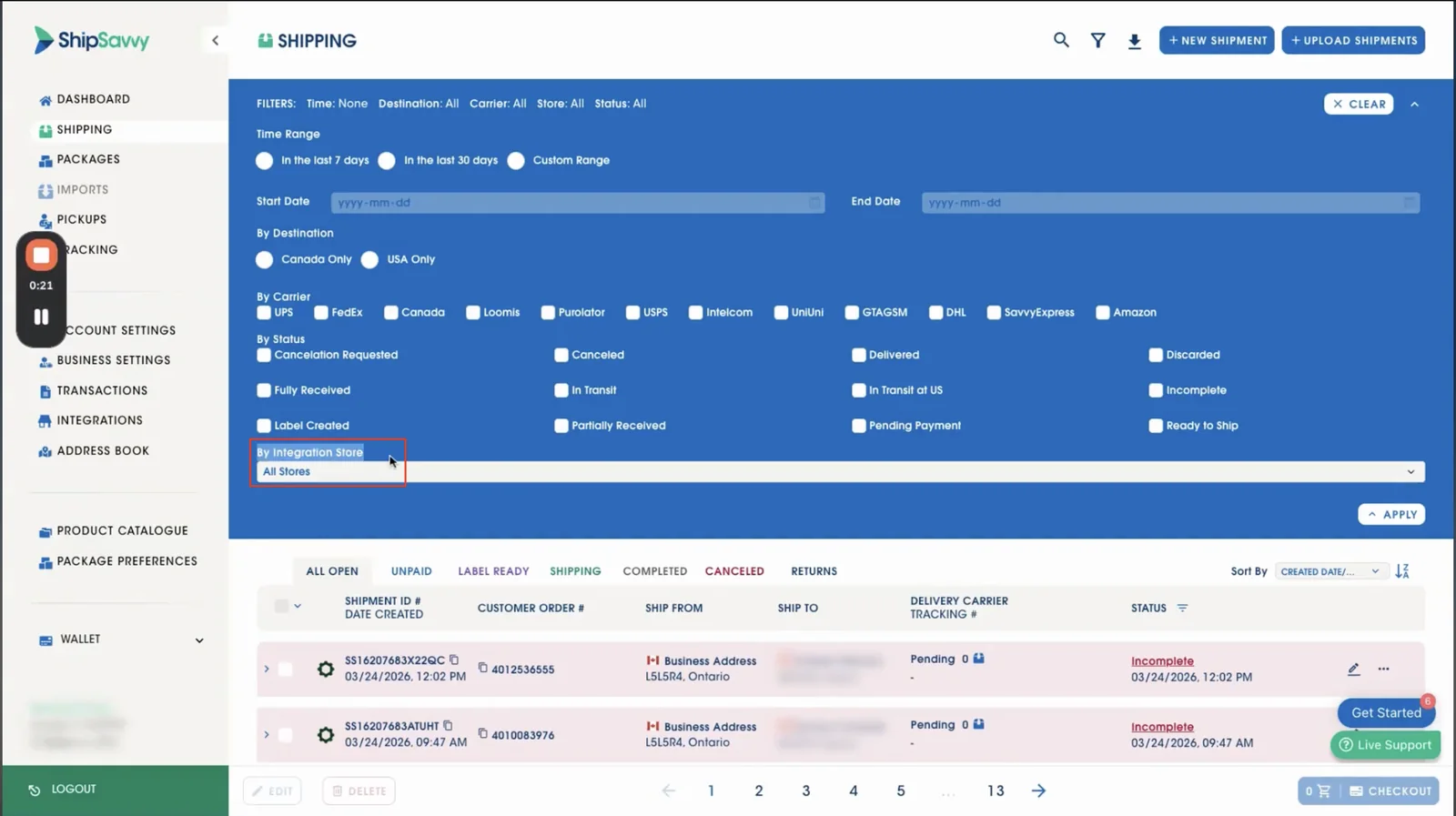
Quick tip: This is great when you want to work store-by-store (e.g., one location in the morning, another later in the day).
Apply the filter
- Click Apply.
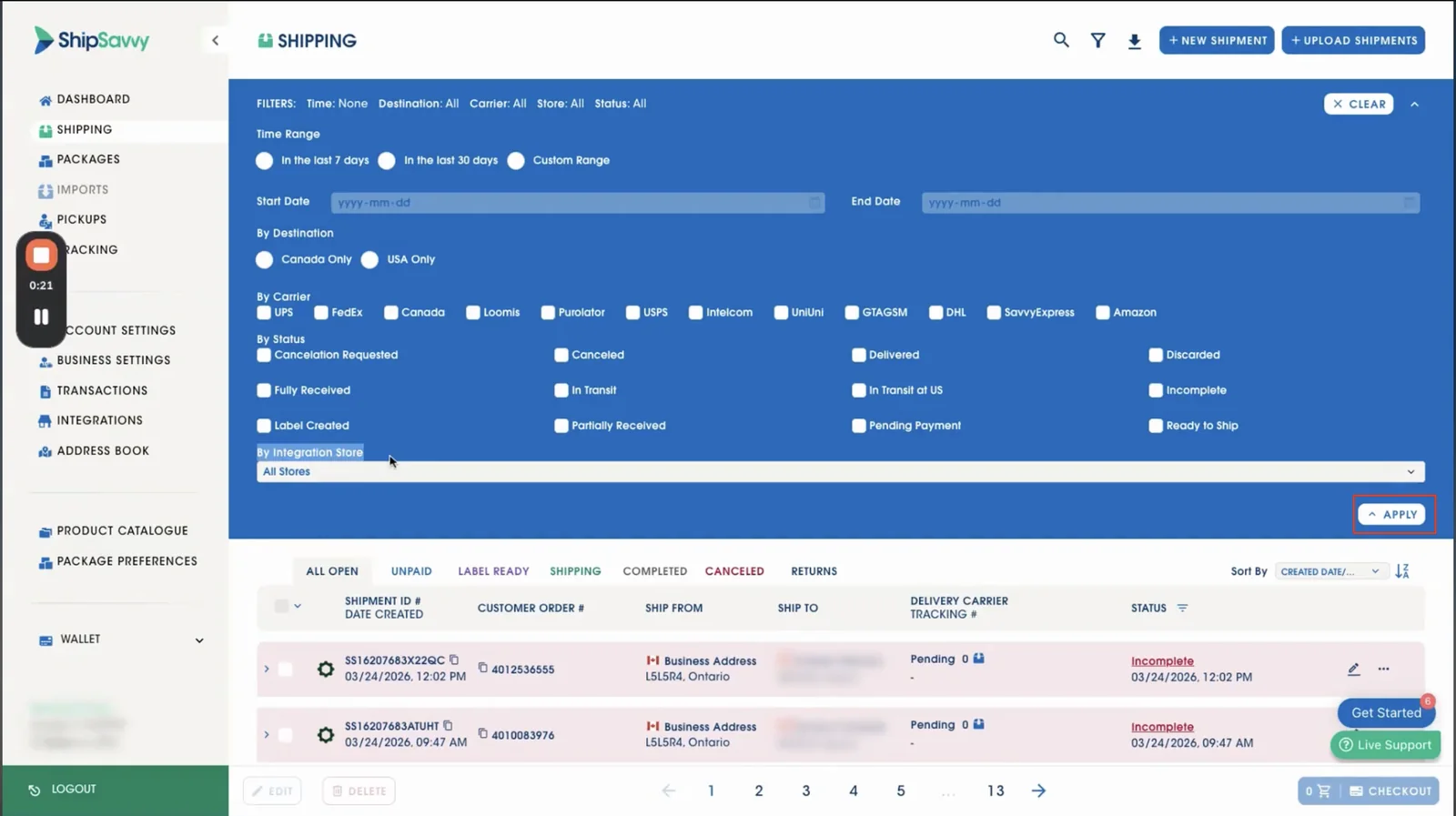
Once applied, you’ll only see orders from the selected store.
Change the filter as needed
- Return to the filter at any time to:
- Switch to a different store, or
- Clear the filter and return to viewing all orders.
Quick troubleshooting
I don’t see the filter option.
- Refresh the page and make sure you’re on the Shipping orders list.
- If you still don’t see it, confirm you’re in the correct account/workspace.
My store isn’t showing in the drop-down.
- Confirm the store is connected and actively syncing.
- If it was recently added, wait a few minutes and refresh.
No orders show after I apply a filter.
- That store may not have orders in the current view/status.
- Try clearing the filter to confirm orders appear again.
Last updated March 25, 2026